
Exporting Models to QC11
Exporting XPDLs from BizAgi
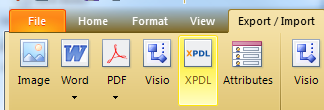
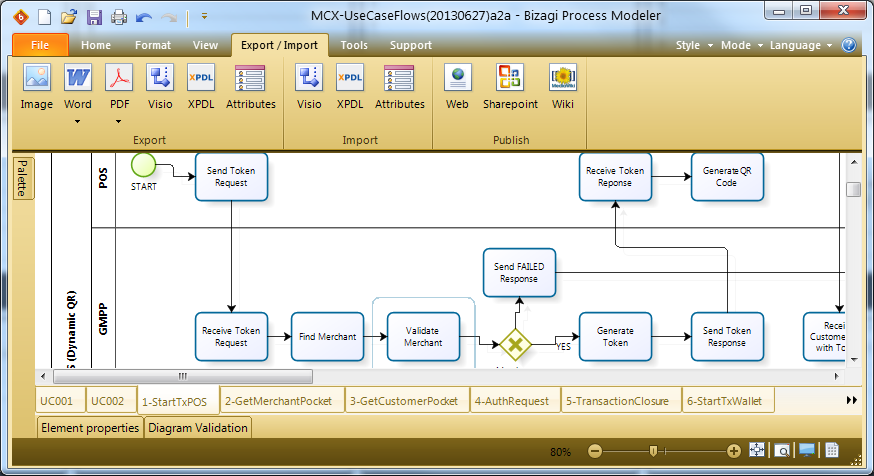
- Click on the Export/Import tab and select XPDL
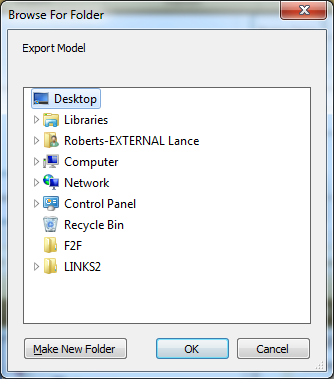
- Select the Export destination folder and click OK
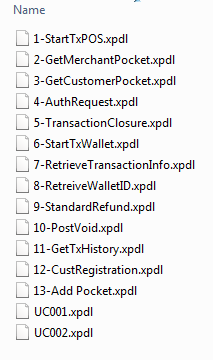
- All files in the project will be exported to a folder with the project name.
- QC11 supports two file types, one of which is the BPMN1.0 XPDL format
Importing XPDLs to QC
- Open QC in Internet Explorer and Log in
- Select Business Models module
- Create AT LEAST one subfolder under Models to import into
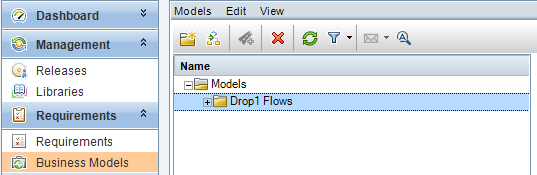
- Right click the subfolder and select Import Model
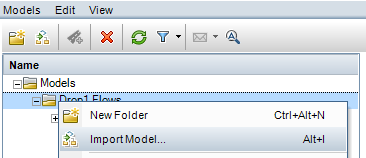

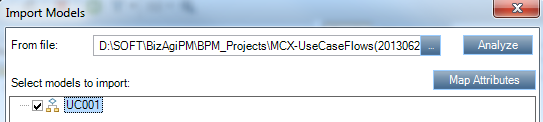
- If the model is valid, it will show up I the dialog.
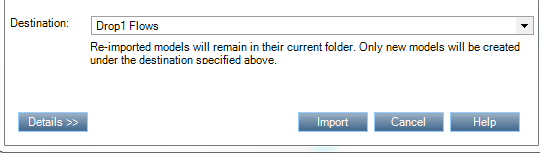
- Click Import
..
..
..
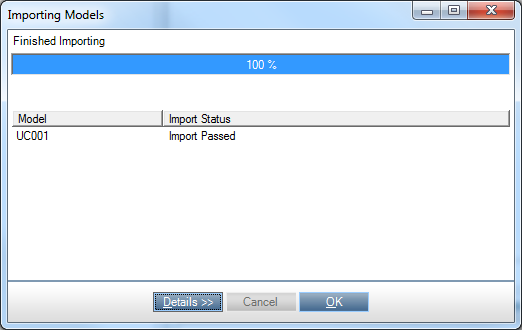
- You now have imported your models into QC!

Exporting Models to Sharepoint
- Open the project in BizAgi
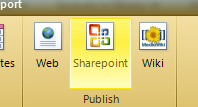
- Select the Export/Import Tab, then Select Sharepoint
Export to Sharepoint
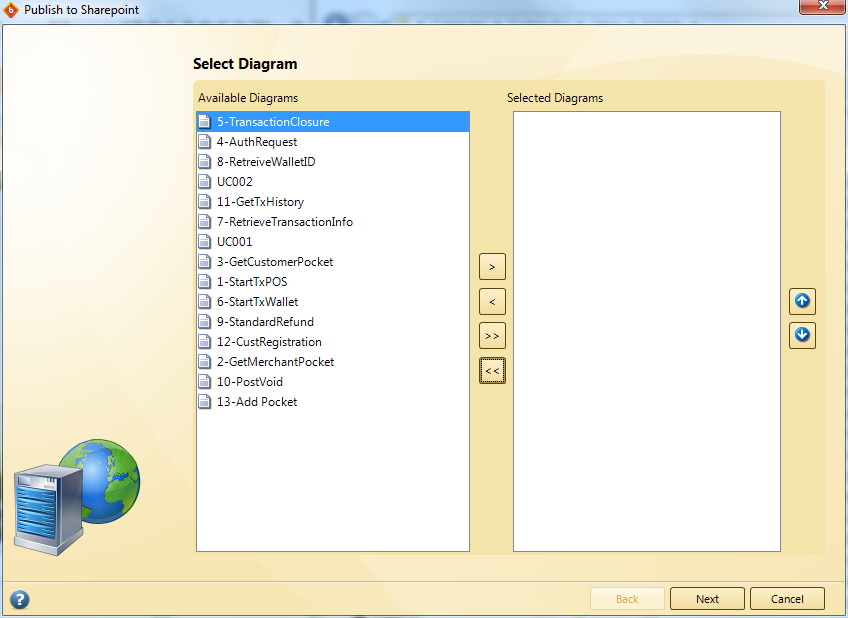
Select Diagram
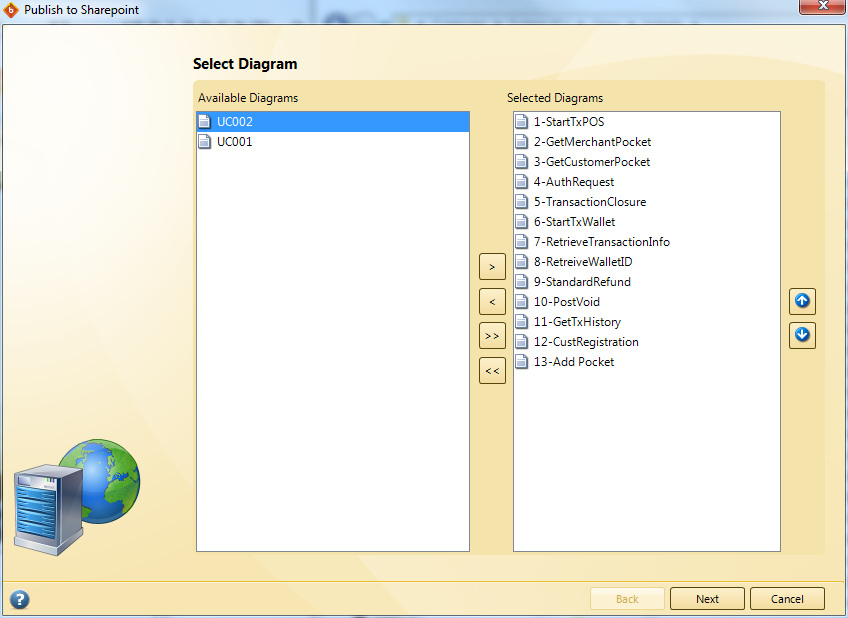
- Select Diagram dialog will be displayed. Select the desired diagrams from the LEFT panel, then click the single arrow ‘>’

- Click Next once all diagrams have been selected and ordered
Select Elements
- The Select Elements dialog will be shown next.
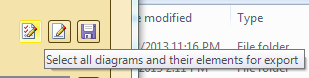
- While I’m not 100% certain of the various options available, the simplest course of action is to simply select the ‘Select all diagrams and their elements for export’ button
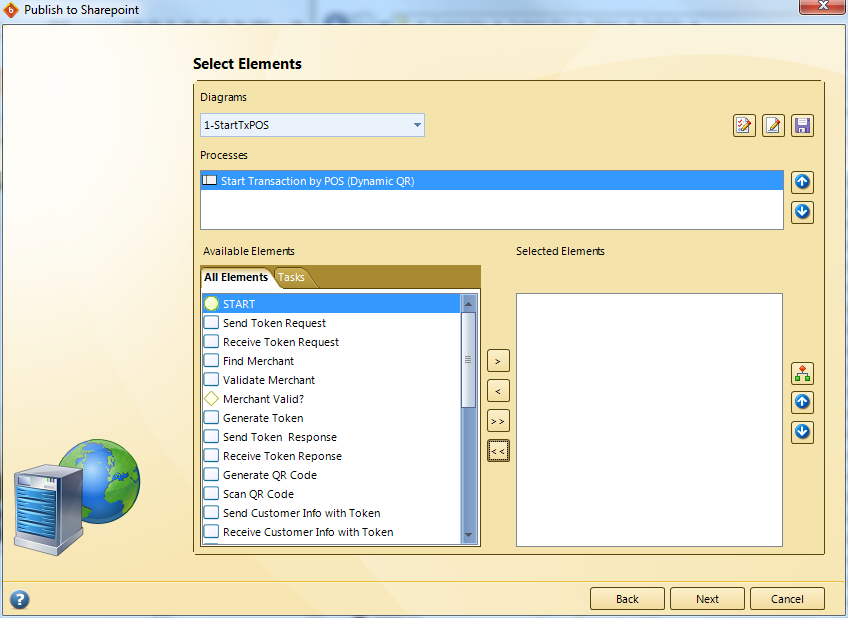
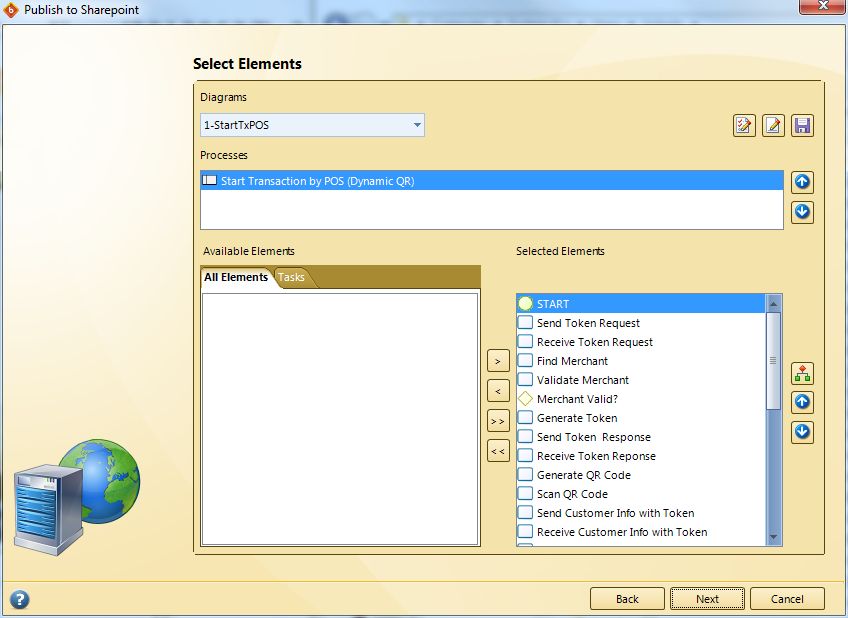
- Check each diagram to ensure that all elements for EACH diagram are on the RIGHT panel

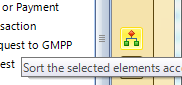
- Click the ‘Sort the selected elements….’ Button to arrange everything appropriately and click Next
Publish to Sharepoint
- Input the URL to the Sharepoint SITE where the diagrams will be exported and click Next.
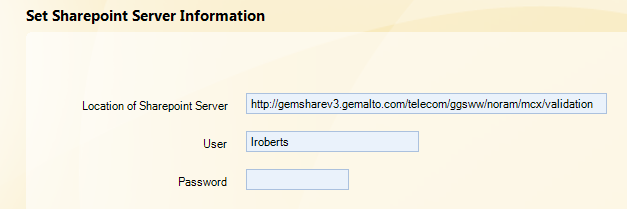
- Bizagi will check the URL and present a folder tree.
- Create or Select a folder for the export.
- BizAgi will create a subfolder with the project name.
- A new subfolder can be manually created for flexible exporting
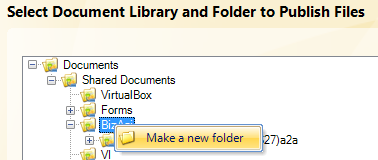
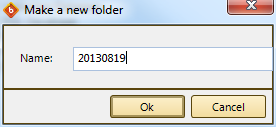
- Click Finish to begin exporting the files


- Once export is complete a browser will be opened automatically and display the results of the export.
- Only Internet Explorer is supported
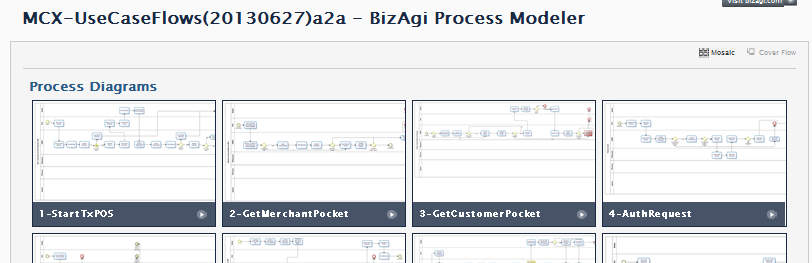
- Click on any of the diagrams to see a full page view.

- Log in to post comments